Release Notes - Beta v0.15
Summary
This release is anchored by Assessments 2.0 — a top-to-bottom redesign of the assessments experience, covering creation, AI generation, the candidate taking experience, and how attempts show up on the candidate's profile. Recruiters get a faster way to create assessments, a smarter "Generate with AI" flow, brand-new video-answer questions that are scored automatically, and a true preview mode. On the platform side, CV scoring is now consistent and trackable, the team invitation flow has been fully rebuilt, and workspaces gain their own email setup plus a single off-switch to pause all outbound email. The interview module gets direct reschedule, resume-based follow-up interviews, searchable job and candidate pickers, local-timezone display, and a fix for two browser tabs disrupting the same interview.
What's New
- Assessments 2.0 — faster creation flow, smarter "Generate with AI" with quick-start presets and a question-mix picker, video-answer questions that are scored automatically, a real preview mode, and a polished candidate experience
- Assessments on the candidate profile — every attempt now appears in a dedicated Assessments section on the candidate page (Passed / In Progress / Expired), with full per-question results just a click away
- Reliable & Trackable CV Scoring — the same candidate, on the same job, with the same setup, now always produces the same score; one shared score across the workspace; full history kept alongside every evaluation
- Team Invitation Flow Rework — clear messages and the right next step for new users, signed-out users, already-signed-in users, and people who clicked a link meant for someone else; in both English and Arabic
- Workspace Email Delivery Controls — each workspace can send email through its own email account, plus a single switch to pause all outbound email when needed
- Interview Workflow Improvements — recruiters can reschedule directly, follow-up interviews are now driven by the candidate's resume, job and candidate pickers are searchable, times show in your own timezone, and two browser tabs no longer disrupt the same interview
- Job UX Polish — the public/hidden toggle is back as a clear button, "Share Job" only appears when a job is actually public, the "Add 1 CV" form is cleaner, and bulk CV uploads handle failures without losing the rest of the batch
Improvements
- Faster assessment creation — replaces the old full-page form with a compact dialog (name, description, time-limit slider, pass mark); category and difficulty default sensibly and can be edited later
- Cleaner editor header — removed the broken Share button (Assign already provides the proper public link)
- Better assessment list — single clean footer with totals, page-size picker, and page navigator, always visible
- Video questions in AI generation — the new question-mix picker has a Video Answer option with a NEW badge
- Re-scan stability — clicking "Re-scan applicants" multiple times no longer produces different scores or different PDFs for the same candidate
- Consistent across applications — two different applications of the same person to the same job now show the same score
- Interview times in your timezone — list rows now show your local time with the original time shown underneath
- Slimmer "Add 1 CV" form — only CV upload and an optional cover letter; the rest is read from the resume
Reliability
- Consistent, repeatable CV scoring — every score is saved with enough history that any past score can be looked up and explained later
- Automatic scoring of recorded video answers — including a behaviour-based read on top of the transcript
- Two-browser interview isolation (rolling out gradually) — fixes a bug where two browsers on the same interview link would kick each other out and overwrite the recording
- Reliable final evaluation — the final interview evaluation now fires at the right point in the flow; no more interviews finishing without a score
- Resilient bulk CV uploads — a single bad file no longer breaks the rest of the batch
Assessments 2.0 — Full Redesign
Faster to Build, Richer to Take, Clearer on the Profile
The assessments experience has been rebuilt end-to-end. The headline changes are:
| Area | What's new |
|---|---|
| Creation | Compact dialog with a time-limit slider — replaces the old full-page form |
| AI generation | Question-mix picker (text / single / multiple / video), quick-start presets, source-material section, simpler Advanced section |
| Question types | Video answers are now a first-class question type, including from AI generation |
| Editor | Cleaner header — removed the broken Share button. Assign already provides the proper public link |
| Preview | A real Preview mode lets you walk the candidate experience without creating a real attempt or skewing analytics |
| Taking experience | Polished full-screen candidate flow with a sidebar question navigator and answered/required indicators |
| Candidate profile | A dedicated Assessments section showing every attempt as a status card (Passed / In Progress / Expired) |
| List pagination | Single clean footer with totals, page-size picker, and page navigator — always visible |
| Scoring | Recorded video answers are scored automatically, including behaviour-based analysis |
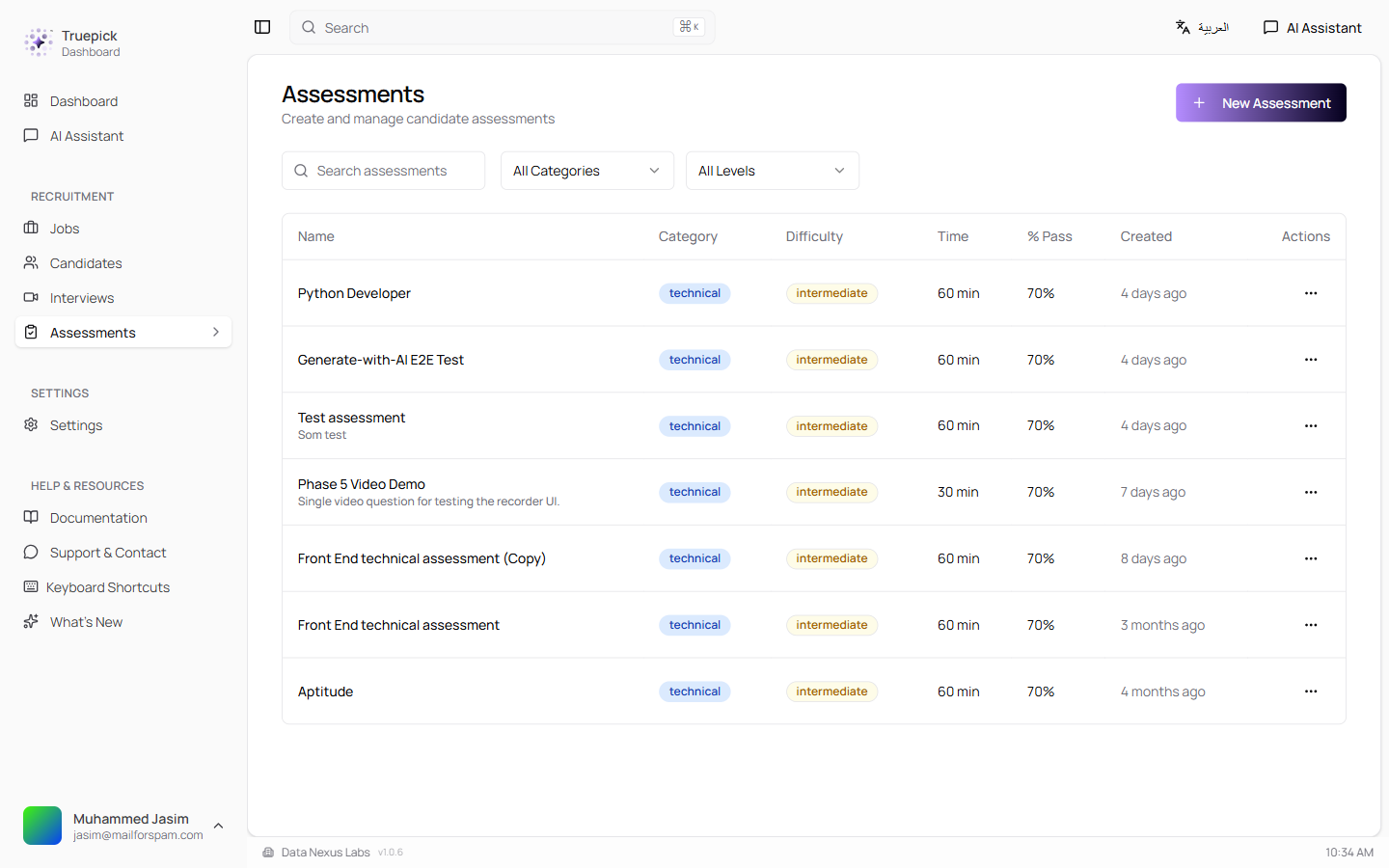
Redesigned assessments list — clean rows, consistent badges, and per-row actions
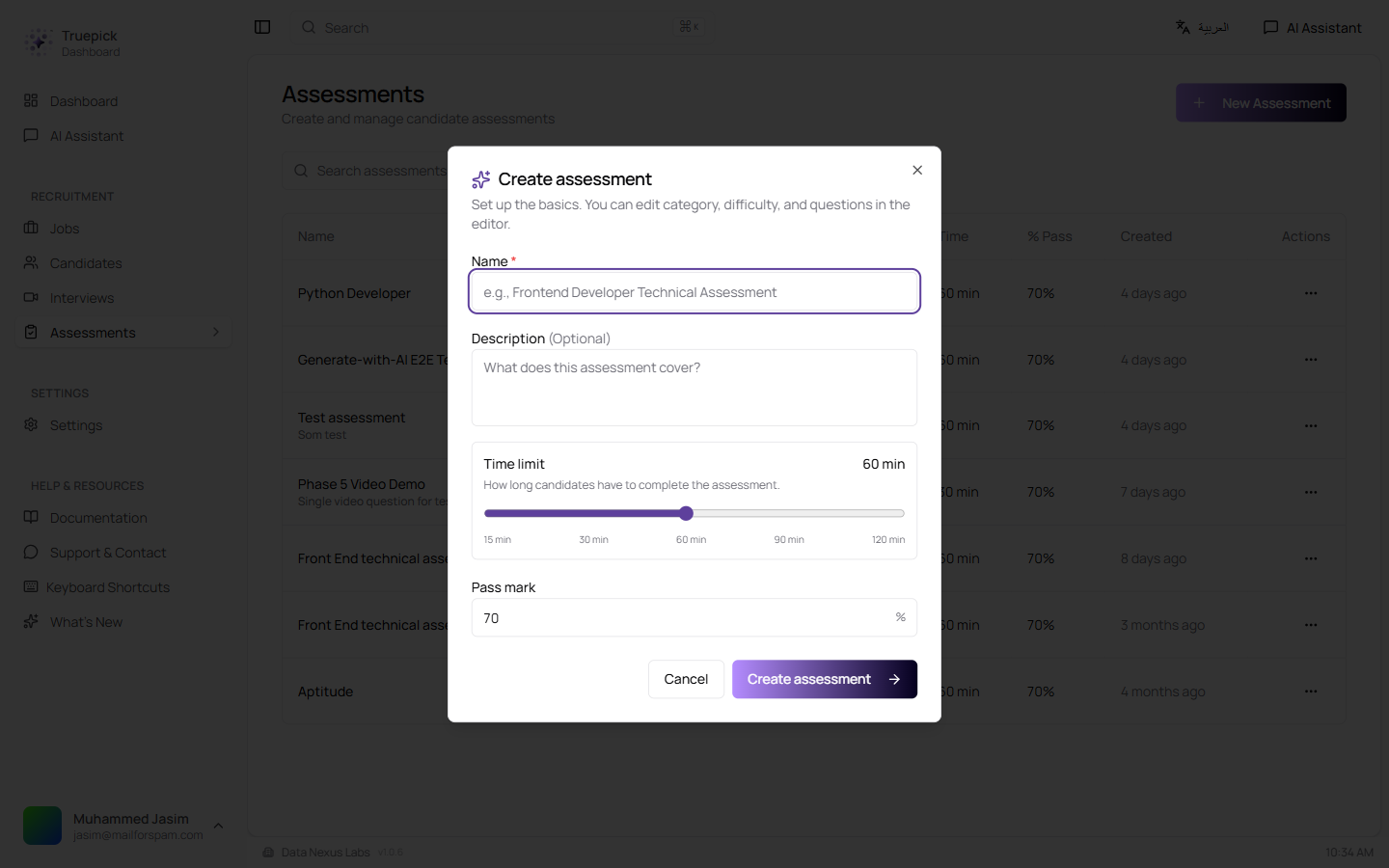
New compact create dialog — name, optional description, time-limit slider, and pass mark. Category and difficulty are edited inline in the editor.
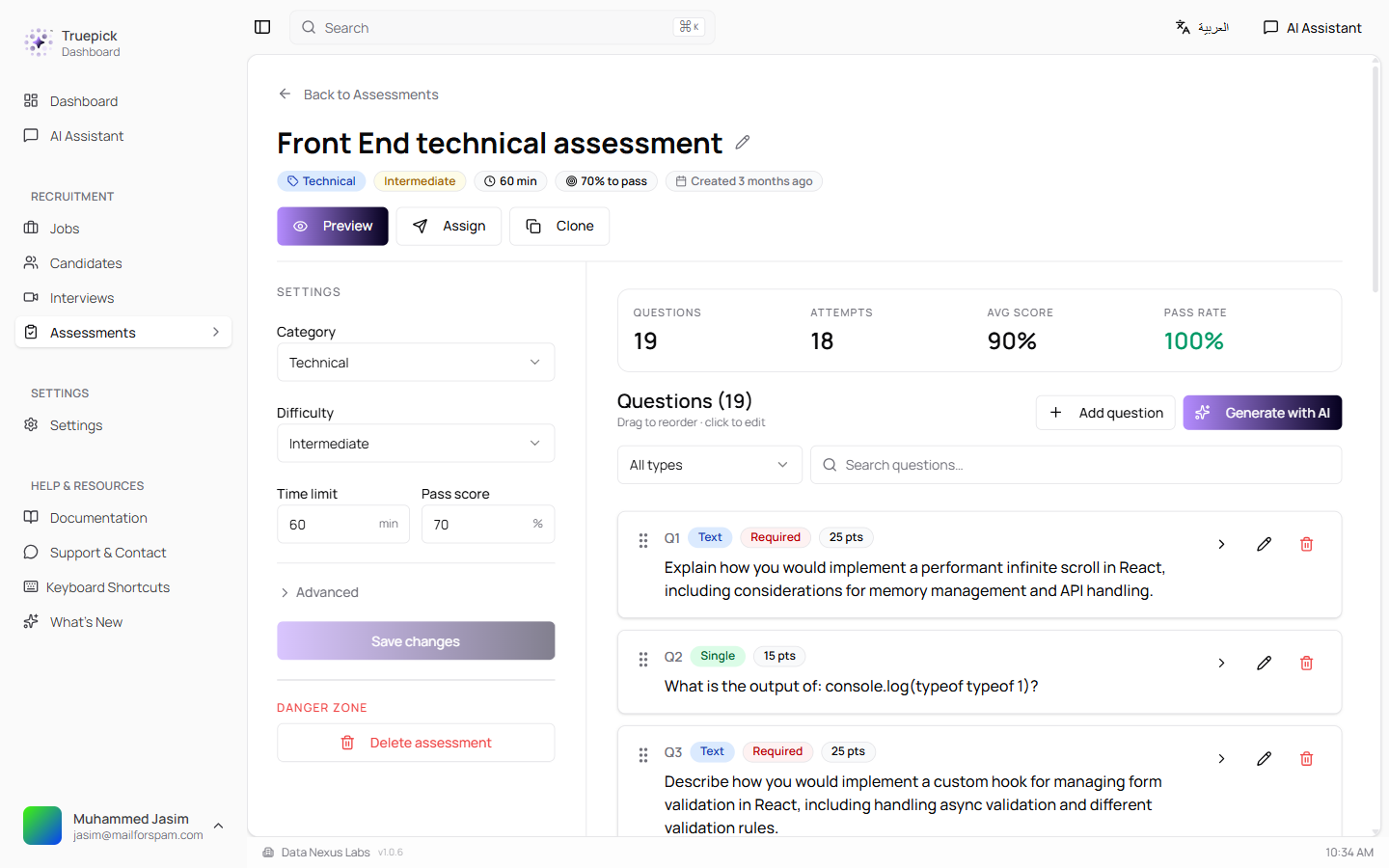
Editor with the new header (Preview, Assign, Clone), inline settings sidebar, and questions list — Q19 shows the new Video question type
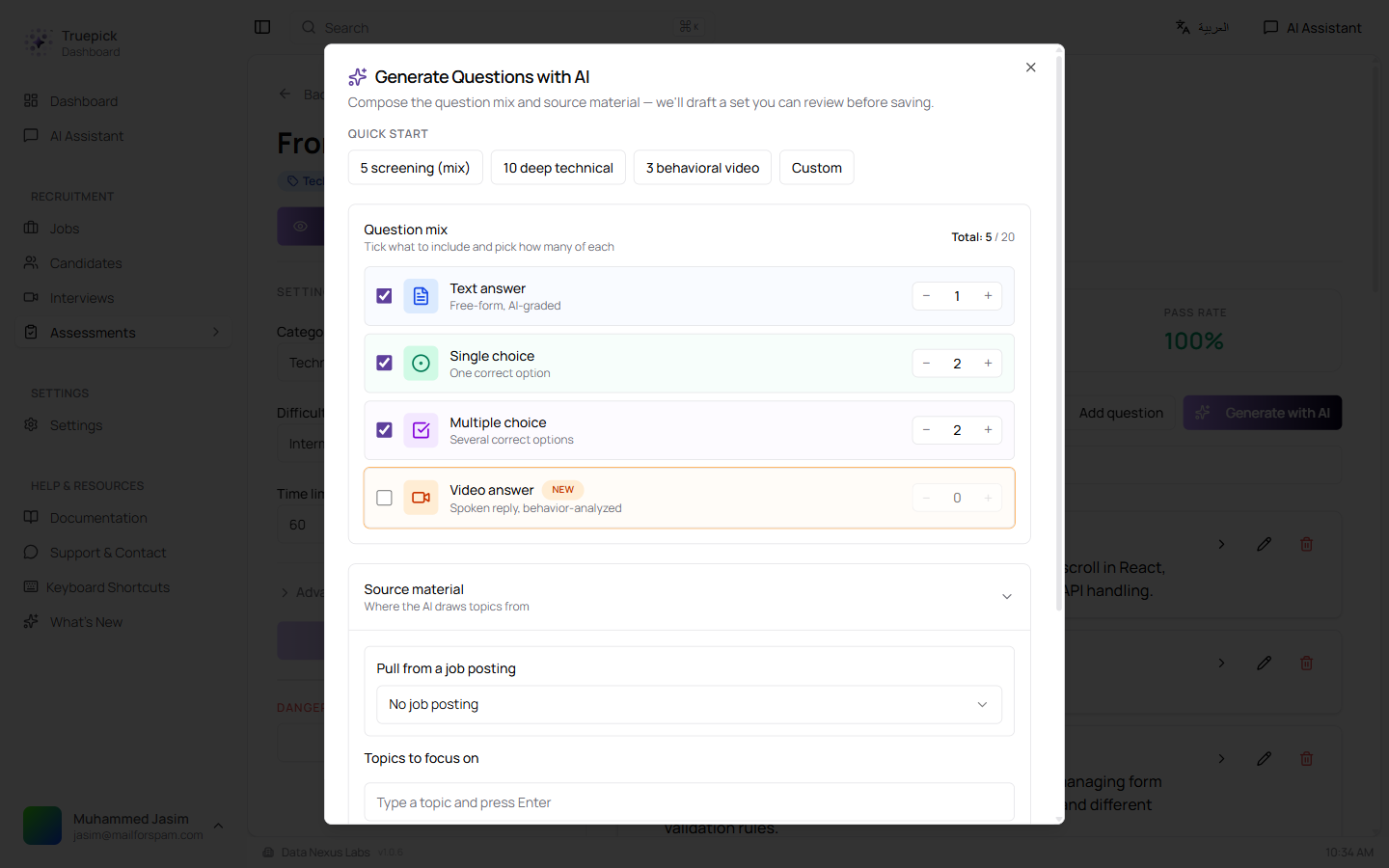
Smarter "Generate with AI" dialog — quick-start presets, a question-mix picker (Text / Single / Multi / Video — with a NEW badge on Video), and a Source-material section that pulls from a job posting or focus topics
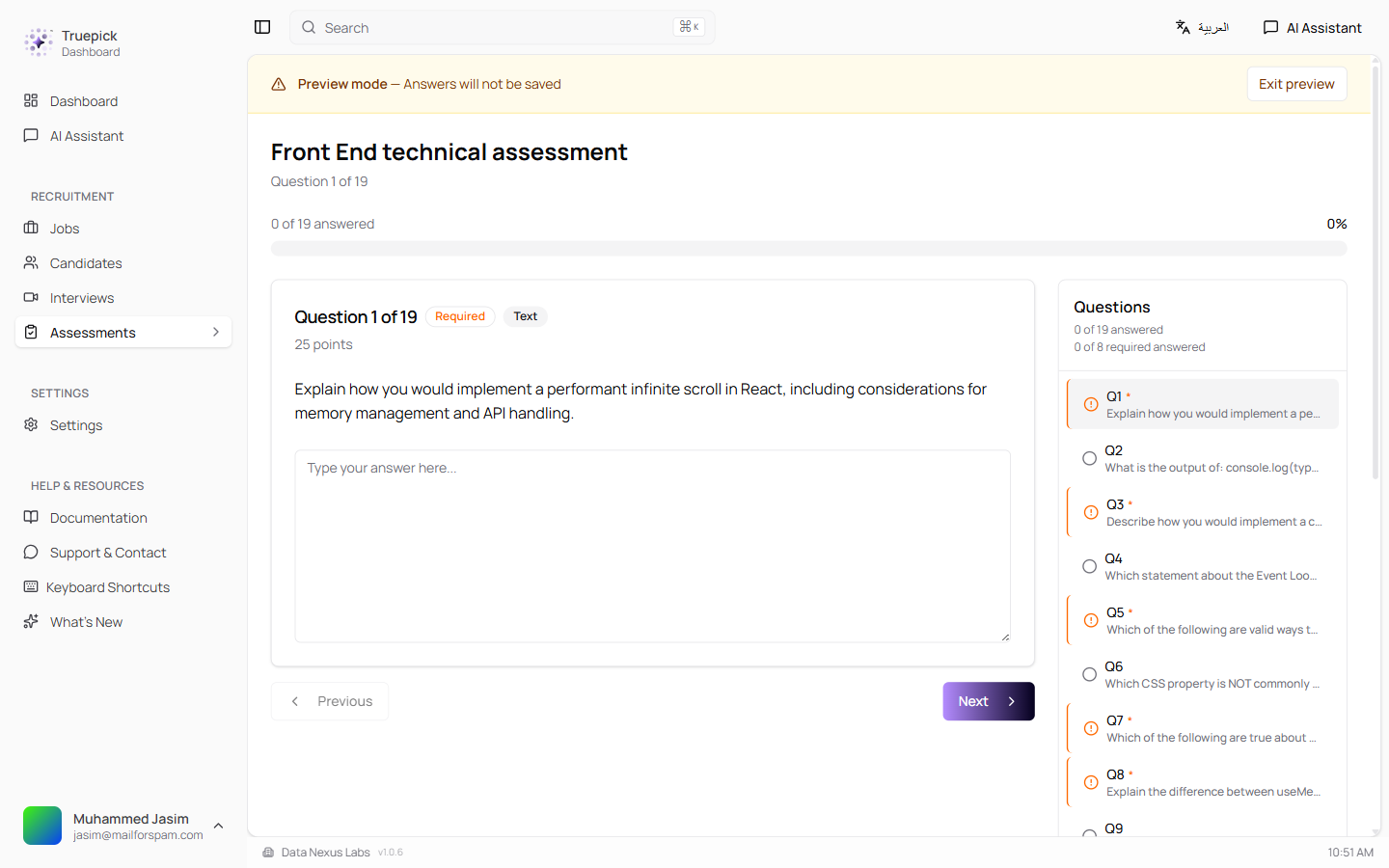
Preview mode shows exactly what a candidate sees, with a banner reminder that answers will not be saved and an Exit preview button
Video Answer Questions
Spoken Replies, Automatically Scored
Candidates can now record video responses to questions. The recorded answer is transcribed, evaluated against the question, and reviewed for behaviour cues — all without any manual review work for the recruiter.
For creators:
- Add a video question directly in the editor, or pick Video answer from the new question-mix picker in the "Generate with AI" dialog
- Time and points are configured per question, just like text or choice questions
For candidates:
- Spoken reply via the in-browser recorder — the same kind of interface as the live AI interview
- One attempt per question, with a clear preview before submitting
Behind the scenes:
- Automatic transcription, then a check that the answer actually addresses the question
- A behaviour-based read layered on top, contributing to the overall assessment score
- Stored alongside the rest of the attempt's per-question results
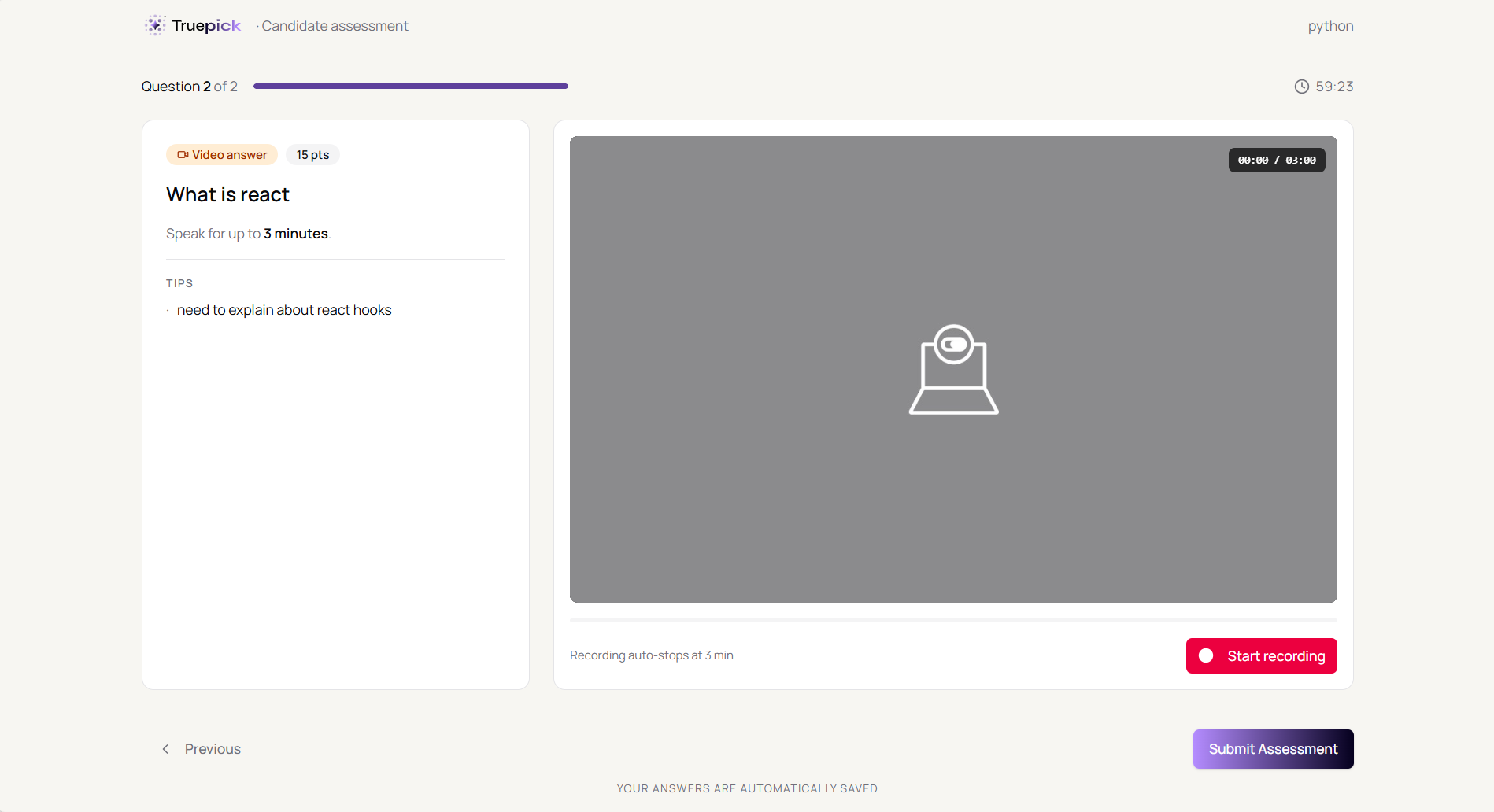
Candidate-side video answer recorder — question prompt and tips on the left, in-browser webcam preview with a clear "Start recording" button and a 3-minute auto-stop timer on the right. Answers save automatically.
Assessments Section on the Candidate Profile
Every Attempt at a Glance
The candidate profile now has a dedicated Assessments section — a chronological, status-coloured list of every attempt the candidate has taken, regardless of which job triggered it.
What you see:
- One card per attempt with status (Passed, In Progress, or Expired), score, and the assessment name
- Clicking a card opens a side sheet with the full per-question breakdown — surfaced exactly where you actually look
- An empty-state placeholder ("This candidate hasn't taken any assessments yet") when the candidate has no attempts on file
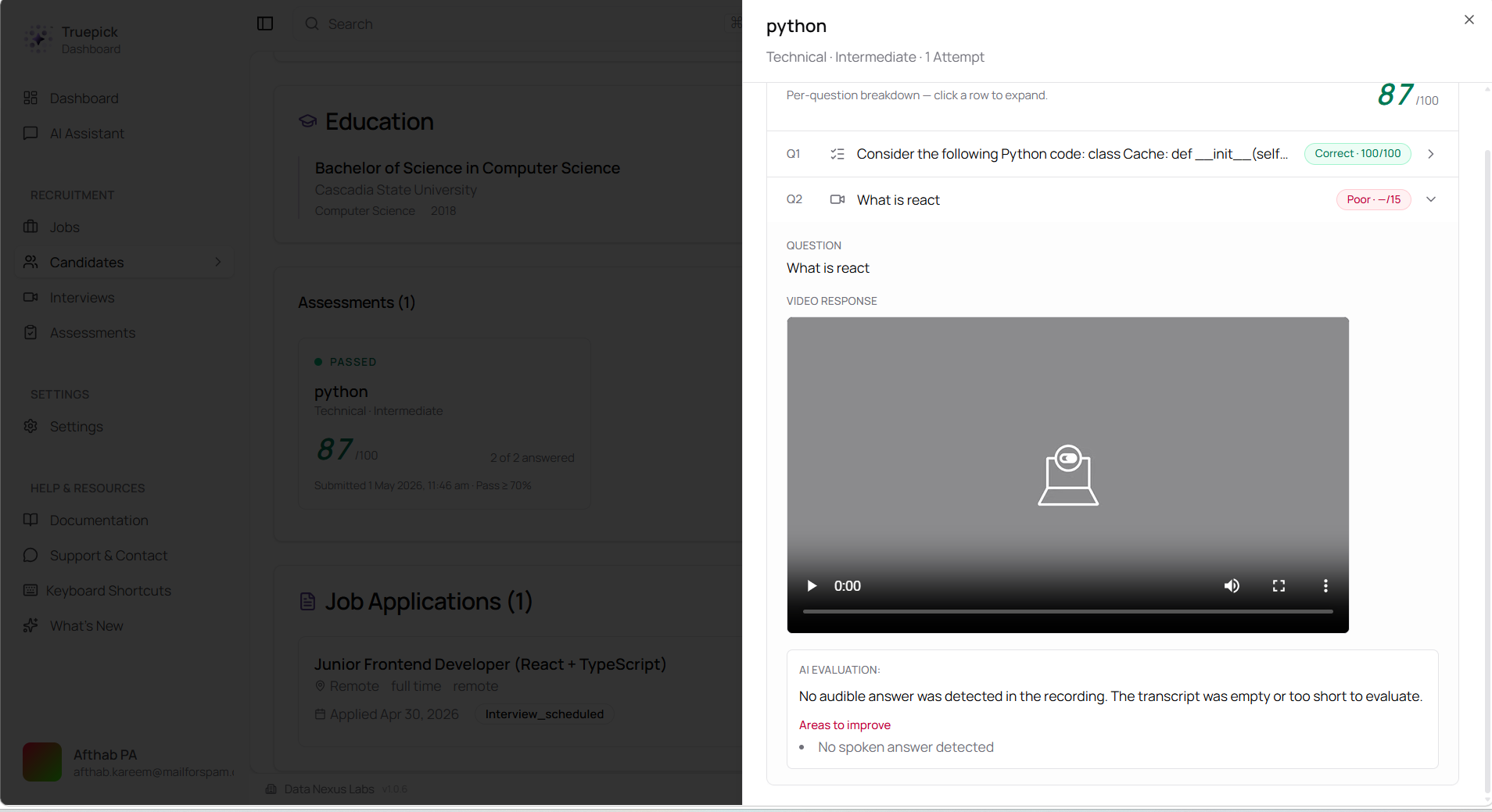
Clicking an attempt card opens a side sheet with the per-question breakdown — score, status per question, and the recorded video answer with the AI's evaluation notes inline
Reliable & Trackable CV Scoring
Same Candidate, Same Job, Same Score — Every Time
CV scoring is now consistent and trustworthy. The same candidate, on the same job, with the same scoring settings, will always produce the same score. Two different applications of the same person to the same job will no longer disagree, and re-scanning applicants will reuse the existing score instead of producing a fresh, slightly different one.
What changed:
| Before | Now |
|---|---|
| Re-scanning applicants could produce different scores and different PDFs for the same candidate | A consistent, saved score is reused for the same candidate + job + settings |
| Two applications of the same person to the same job could end up with different scores | A single shared score across the workspace |
| Limited history — scores were a number with no surrounding context | Every evaluation stores when, which model, the weights used, the breakdown, and the scoring rules at the time |
| Past scores could not be looked up if the prompt or model changed | Past scores can be looked up and explained at any time |
Why it matters:
- Recruiters can defend a hiring decision later — the evaluation details are preserved
- Workspaces can change scoring settings later without losing the ability to look up older scores
- Re-scan operations no longer waste time and AI usage on results that were already final
Team Invitation Flow Rework
A Smooth Path for Every Invite Scenario
The invitation experience has been rebuilt from the ground up. All four scenarios now have proper feedback and routing:
| Scenario | What the user sees |
|---|---|
| New user invited to a workspace | Clean signup screen with the workspace name carried through registration |
| Existing user, signed out | Sign-in prompt with the invited workspace highlighted; lands directly inside the workspace after sign-in |
| Already signed in | In-app banner with Accept / Decline, no forced re-login, lands on the right page after accept |
| Wrong email on link | Clear message explaining the mismatch with sign-out / switch-account options instead of a silent failure |
Other polish:
- The native browser confirm popup is gone — replaced with a proper in-app dialog that matches the rest of the UI
- All new copy is available in English and Arabic
- Every accept/decline action shows a confirmation message
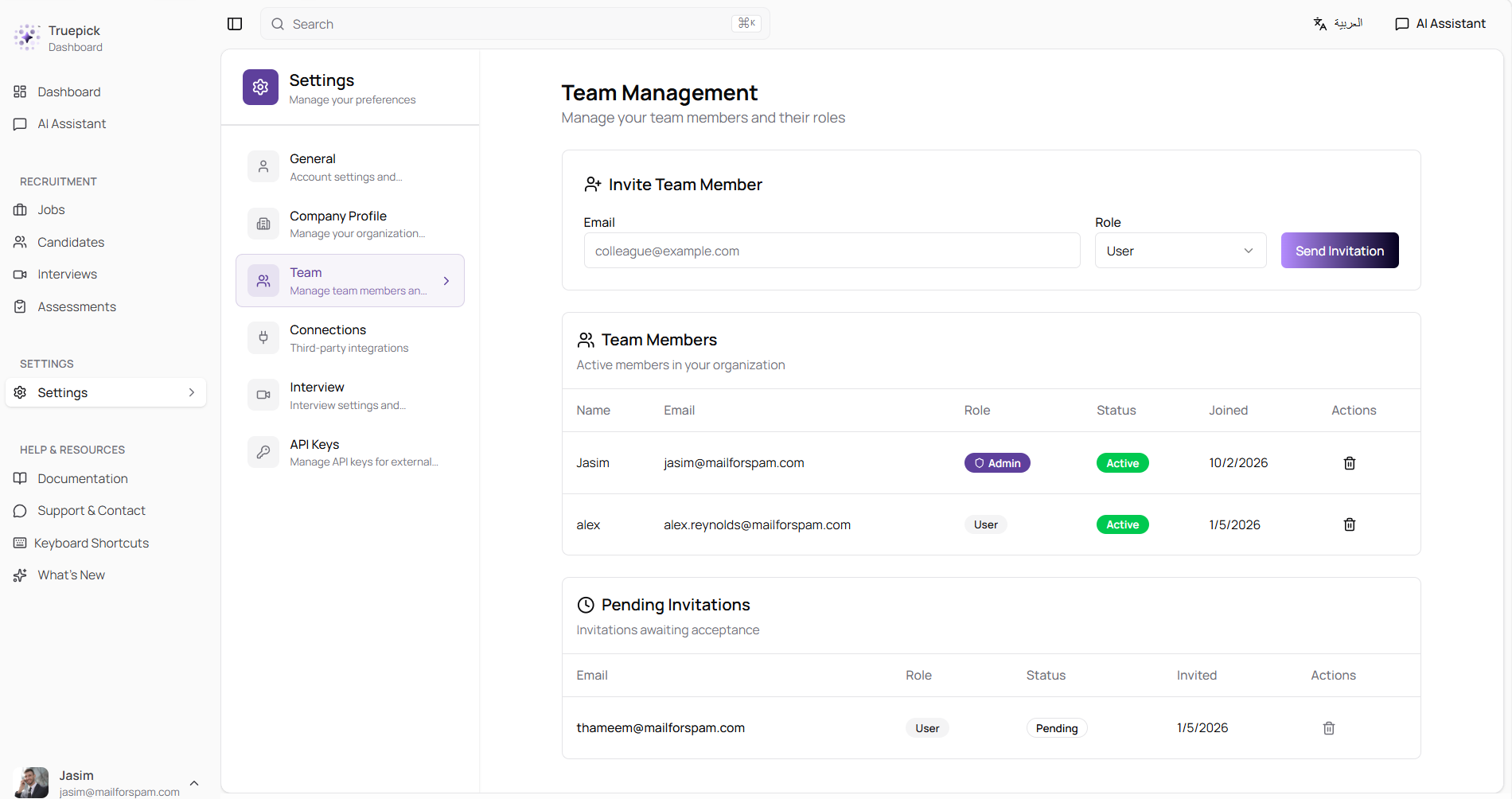
Team Management page — invite a teammate by email and role at the top, active members and their statuses below, and a Pending Invitations table for invites that haven't been accepted yet
Workspace Email Delivery Controls
Each Workspace Sends Email Its Own Way
Workspaces now have full control over their outbound email — both how mail is sent and whether it is sent at all.
Send through your own email account
Each workspace can configure its own email server and from-address. When set, all outbound mail from that workspace — application confirmations, status updates, interview invitations, decision emails — is automatically sent through the workspace's own email account. No more shared default-provider domain on candidate emails.
Configurable per workspace:
- From email address
- Email server, port number, username, password
- Optional secure-connection toggle
- Optional email signature appended to outgoing emails
Workspace email off-switch
A single toggle — Disable outbound email — pauses all outbound email from the workspace. Useful for staging, audits, or briefly pausing communications before a re-launch. Nothing is delivered to candidates or recruiters until the toggle is turned back off.
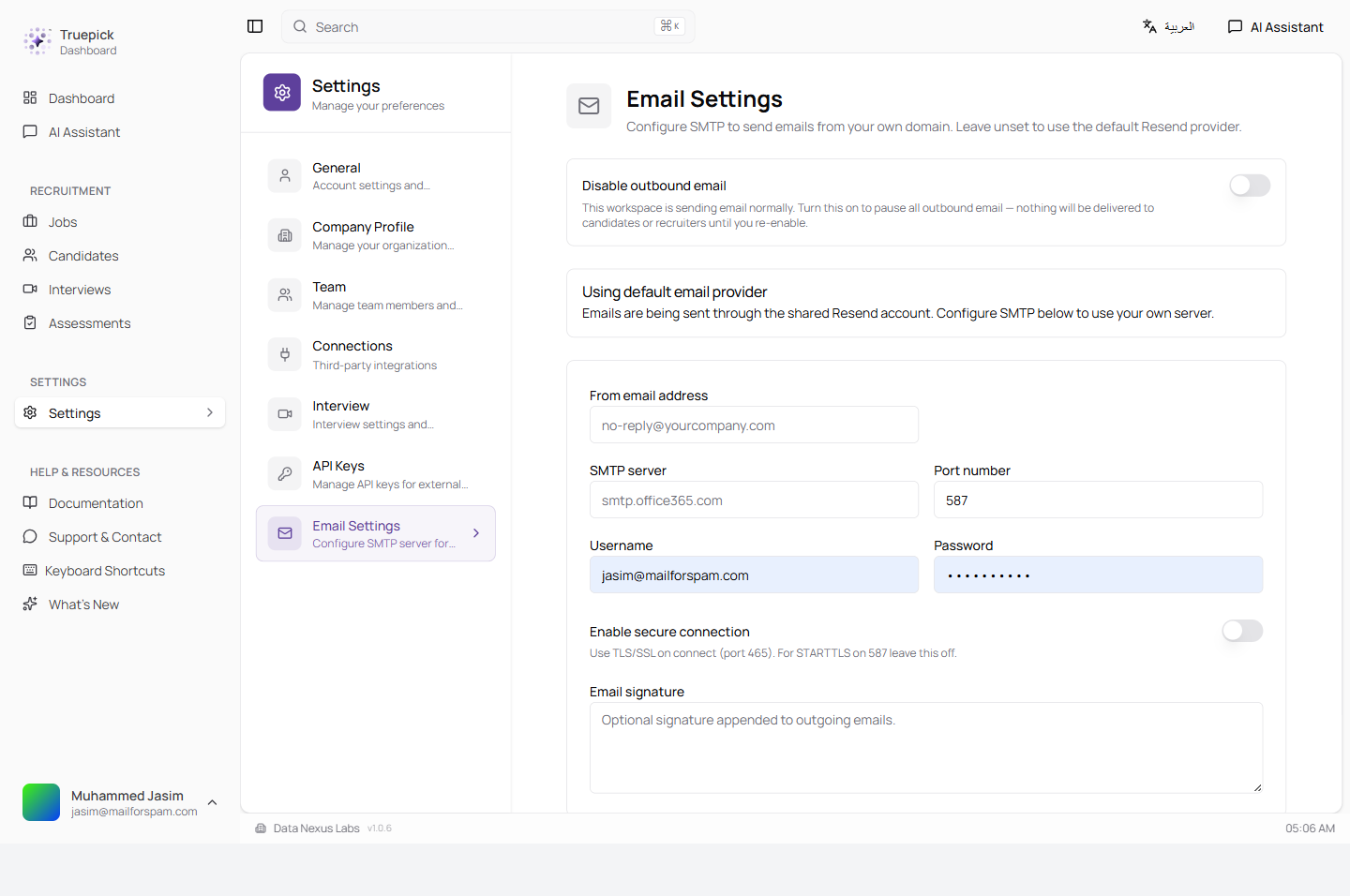
Email Settings page — off-switch at the top, per-workspace email server fields below, with a banner showing whether the workspace is using its own server or the default provider
Interview Workflow Improvements
A Set of Recruiter- and Candidate-Facing Quality-of-Life Wins
| Improvement | Why It Matters |
|---|---|
| Direct reschedule | Recruiters can reschedule an interview in place; candidates get an email that clearly shows what changed (new date/time, with the original time shown underneath) |
| Resume-based follow-up interviews | The follow-up interview experience is now built around the candidate's resume, so questions are tied to the candidate's actual background rather than a generic template |
| Searchable job and candidate pickers | The interview scheduling flow uses searchable pickers instead of plain dropdowns — a big help once you have hundreds of candidates and dozens of open jobs |
| Local timezone display | Interview times now show in the viewer's local timezone, with the original timezone shown underneath |
| Two-browser session isolation *(rolling out gradually)* | Two browsers on the same interview link no longer kick each other out or overwrite the recording |
| Reliable final evaluation | The final interview evaluation now fires at the right point in the flow; no more interviews finishing without a score |
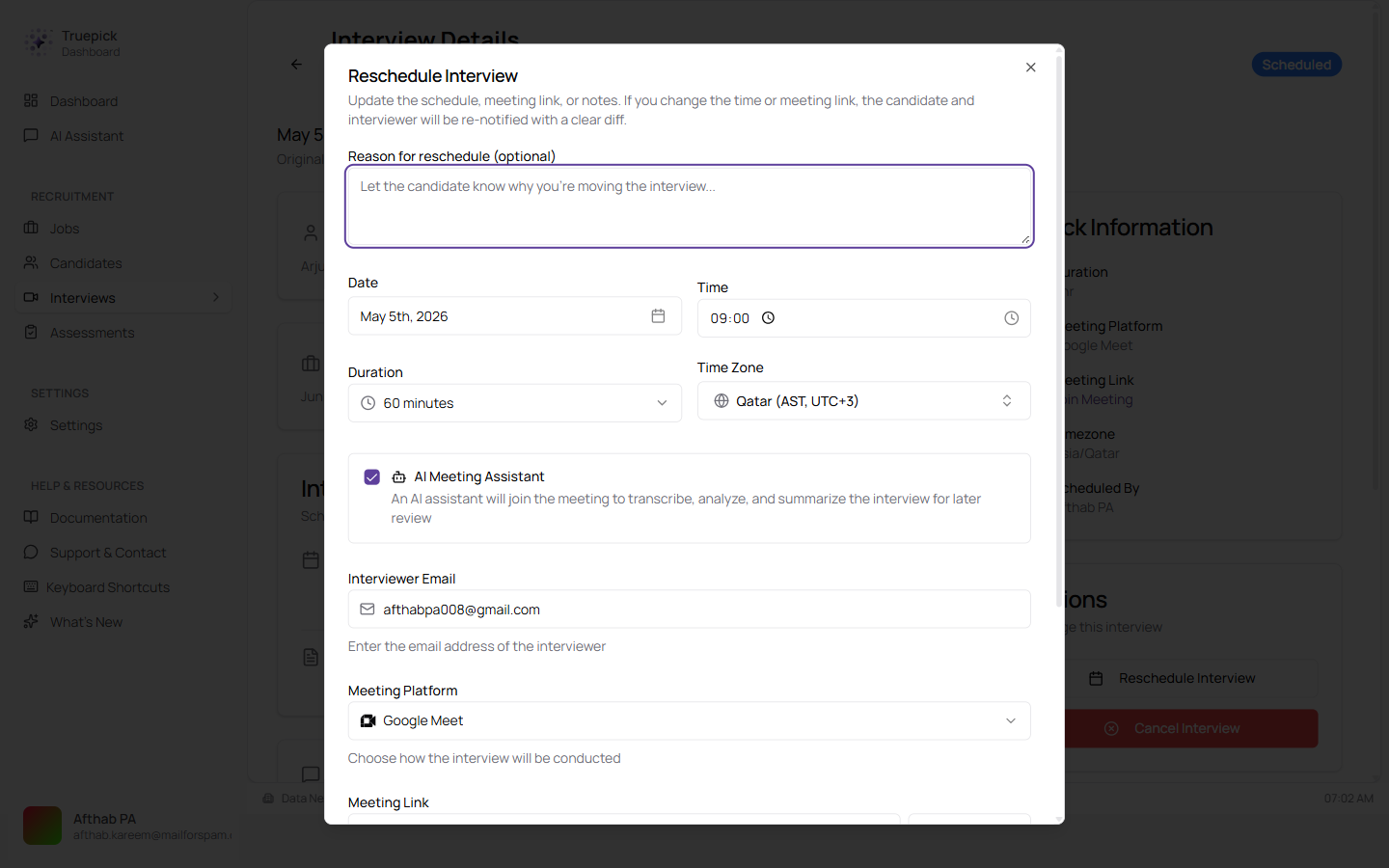
Reschedule Interview dialog — optional reason note, new date/time, duration, time zone, AI Meeting Assistant toggle, interviewer email, meeting platform, and meeting link, all in one place. Saving notifies the candidate and interviewer with what changed.
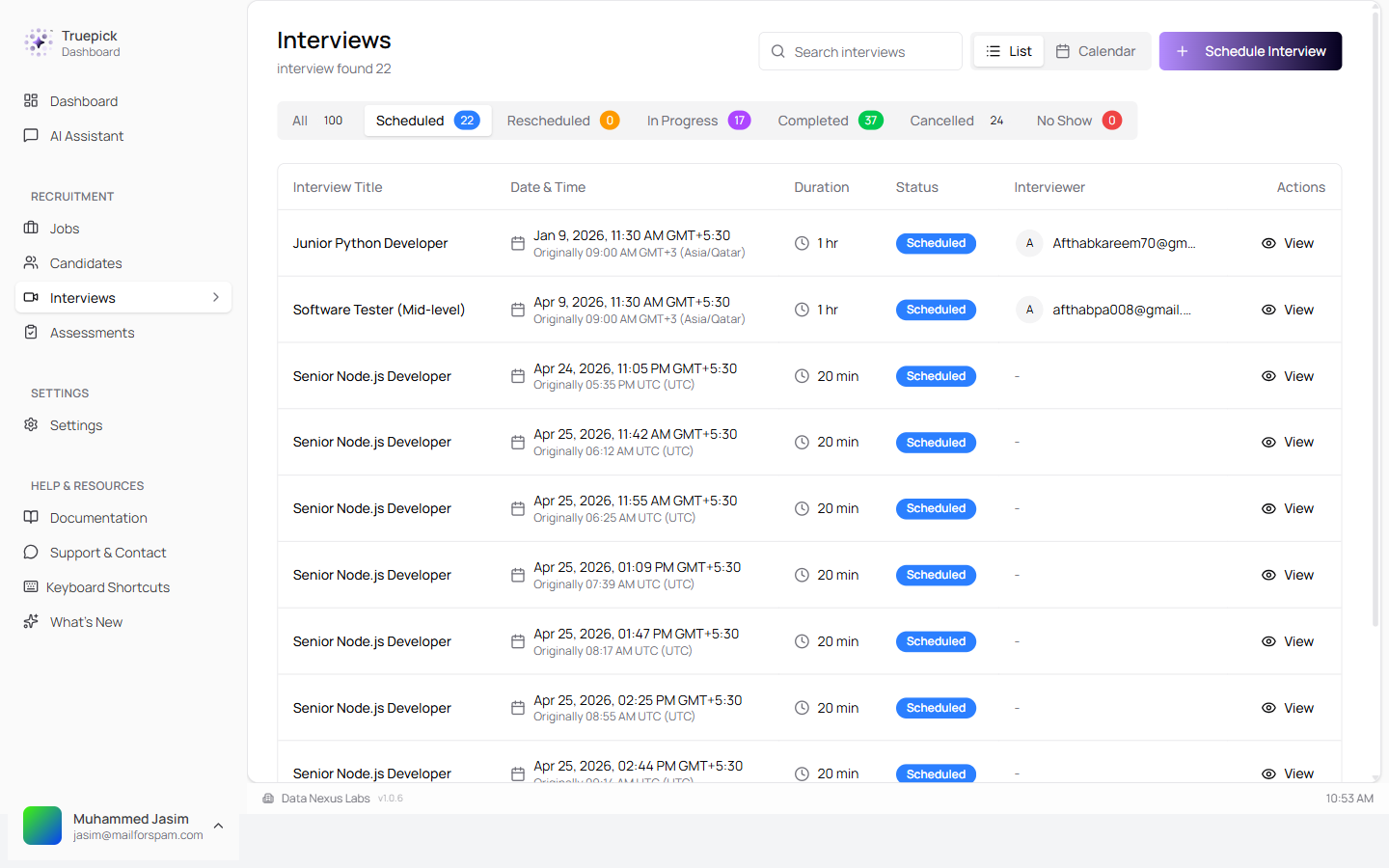
Interview list now shows times in your timezone, with the original timezone shown beneath — and a new "Rescheduled" tab for easy filtering
Job UX Polish
Cleaner Forms, Clearer Toggles, Sturdier Uploads
Restored visibility toggle as a clear button
The job details page brings back a Public / Hidden toggle as a prominent button next to the Published status badge — green when public, outlined when hidden. The "Share Job" option now only appears when the job is actually public, so a hidden job can't be shared by accident.
Cleaner "Add 1 CV" form
The single-candidate upload form no longer asks for candidate identity fields that don't belong in that flow. The only inputs are now CV upload and an optional cover letter — the rest of the candidate's profile is read from the resume itself.
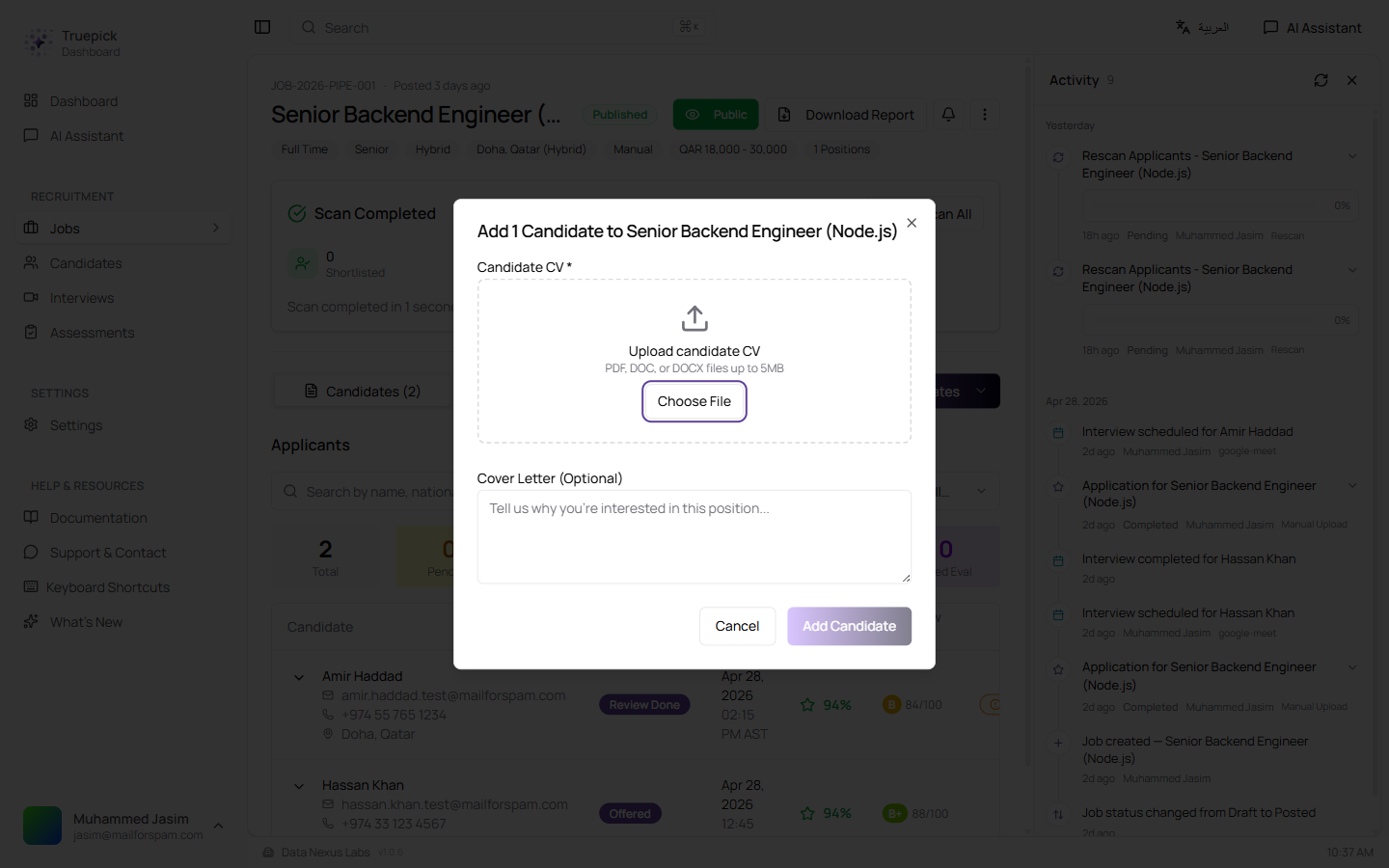
Slimmed-down "Add 1 Candidate" dialog — CV upload + optional cover letter, nothing more
Resilient bulk CV uploads
Failures during a bulk CV upload are now handled gracefully. A single bad file no longer silently drops or breaks the batch — failed items are surfaced with a clear status, the rest of the batch keeps going, and you can retry just the failures without re-uploading the whole set.
General UI polish across various screens — consistent spacing, badge styles, and empty-state copy across the candidates, jobs, and assessments pages.
Released on May 01, 2026
View all releases